Better Tiptop Installation Guide
Follow these steps to install and start using Better Tiptop.
Step 1: Install the Extension
Currently, the extension is not available on the Chrome Web Store. You can install it manually:
- Visit the GitHub Releases page
- Download the
.zipfile from the latest release - Extract the
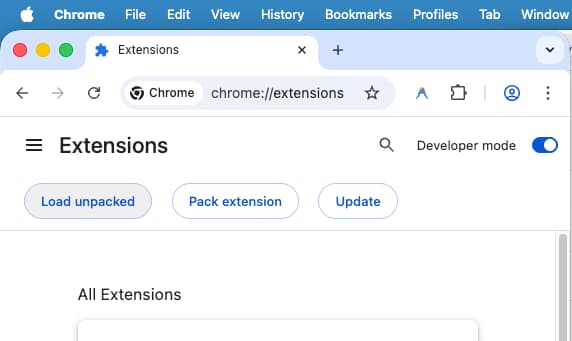
.zipfile to a folder on your computer - Open Chrome and type
chrome://extensions/in the address bar - Enable “Developer mode” using the toggle in the top right corner
- Click the “Load unpacked” button
- Select the extracted folder from step 3
- The extension will appear in your list of installed extensions
Step 2: Pin the Extension
- Click the puzzle (Extensions) icon in the top right corner of Chrome
- Find “Better Tiptop” in the list of extensions
- Click the pin icon to pin it to the toolbar
Step 3: Open Tiptop Shop
- Visit shop.tiptop.co.id
- Log in to your Tiptop Shop account
- Ensure you are logged in before using the extension
Step 4: Export Order (Optional)
If you have previous orders on Tiptop Shop:
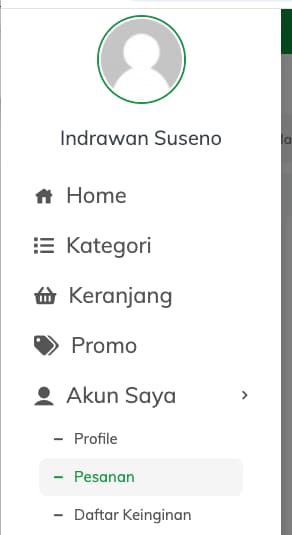
Open Order History on Tiptop Shop. In the menu, select “My Account” -> “Orders”
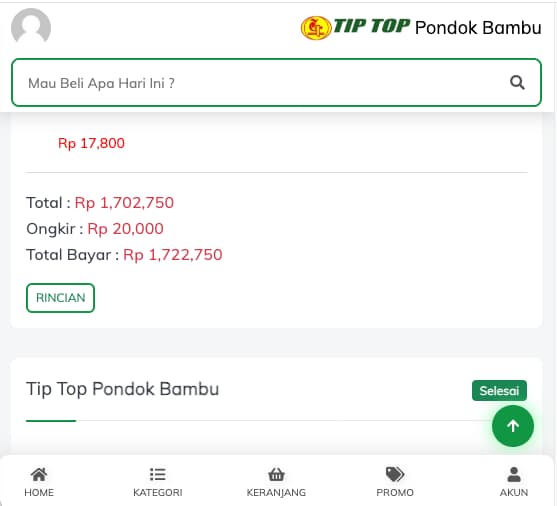
Select the order you want to repeat. Click “Details”
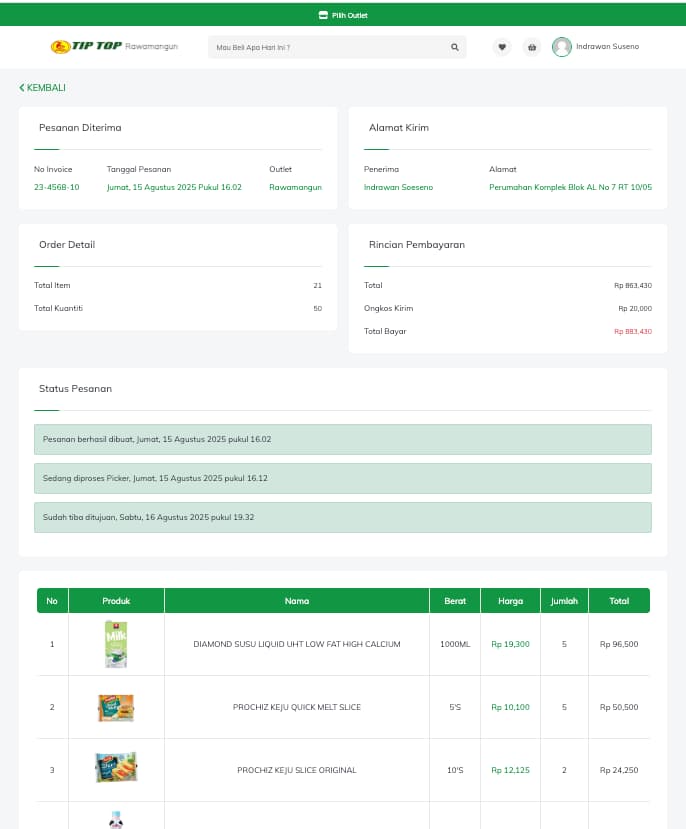
Save the order page (order details) as an HTML file
Step 5: Start Using Better Tiptop
Click the Better Tiptop icon on the Chrome toolbar
Upload the order file (HTML/CSV). The extension will read the products. If the Tiptop branch is different from the previous order file, select the desired branch.
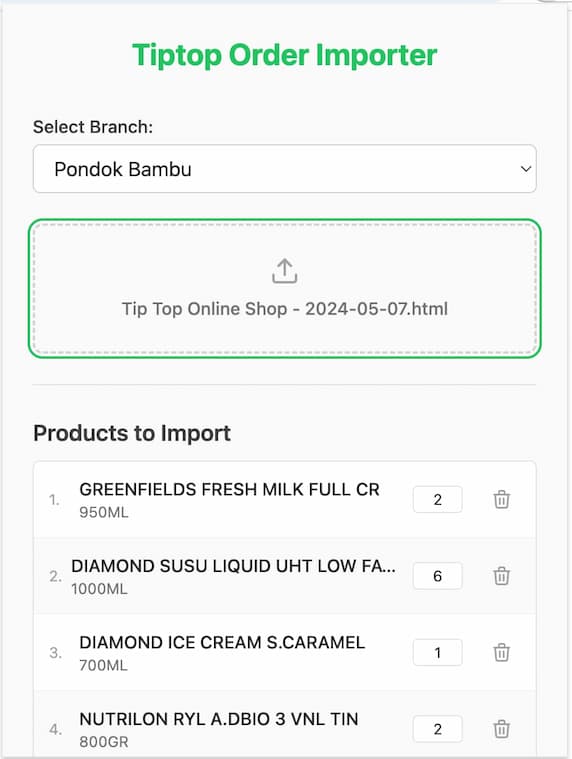
Edit the desired quantity of items or remove products.
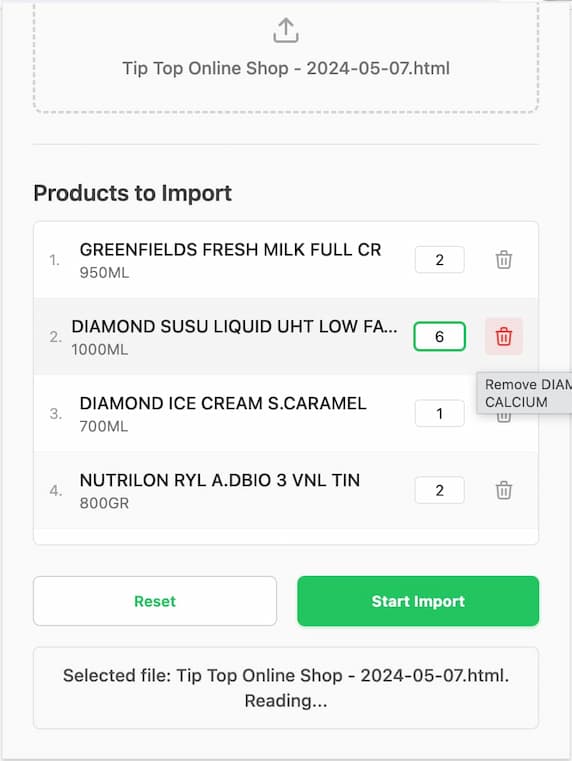
Click “Start Import”
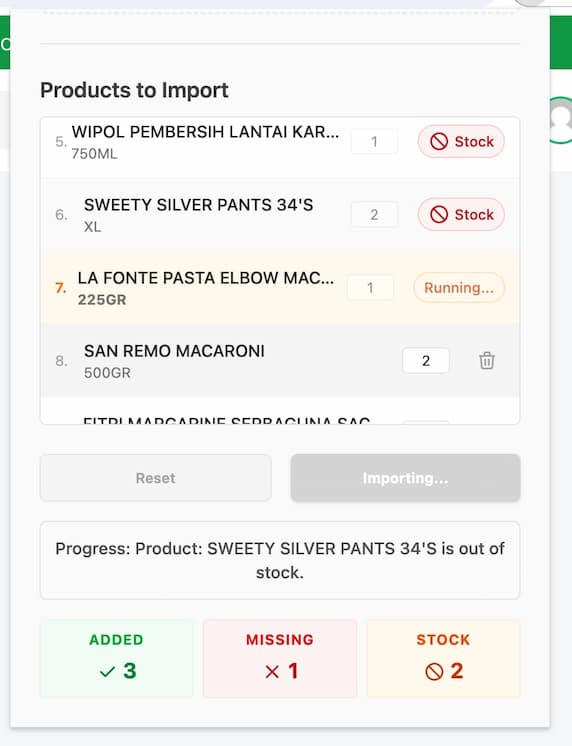
Wait for the process to complete
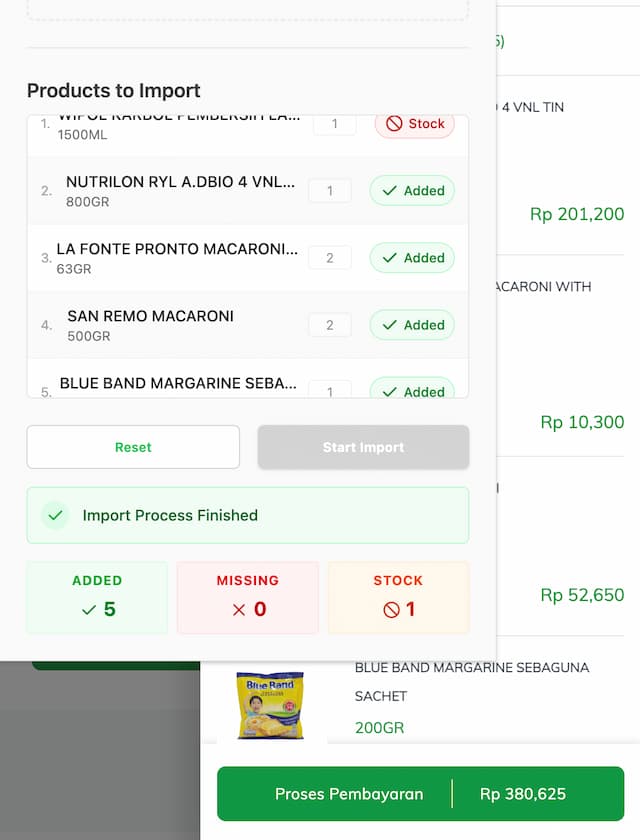
Here is a screenshot when the process is complete and the shopping cart in Tiptop Shop is successfully filled.
Troubleshooting
Extension does not appear after install
- Refresh the Tiptop Shop page
- Ensure the extension is pinned to the toolbar
- Check if the extension is enabled in chrome://extensions/
Import not working
- Ensure you are logged in to Tiptop Shop
- Check file format (must be HTML or CSV)
- Refresh the page and try again
- Clear cache browser if problem persists
CAPTCHA always appears
- This is normal to prevent bots
- Solve CAPTCHA manually when prompted
- The extension will automatically resume after completion
Product not found
- Ensure product name matches Tiptop database
- Check if the selected branch stocks the product
- Products that are out of stock will be marked in red
Get Help
If you experience issues not covered here:
- 📖 See FAQ for common questions
- 🐛 report a bug
- 💬 Contact us: